The Bard
Images, Voice & Media 12 articles in this folder
Images, Voice & Media 12 articles in this folder
Enabling your microphone
- Select the mic icon
- Select the icon to the left of the address bar where pixelchat.ai is shown
- If you see the microphone permission toggle, select it to allow access
- If you don't see it, open Site Settings and enable the microphone there
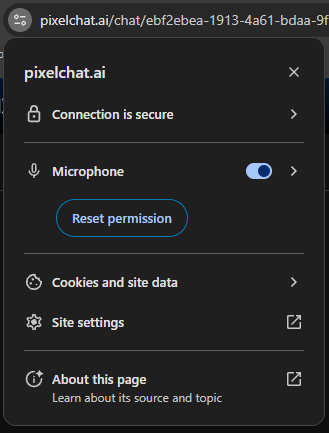
If you dismissed the prompt or blocked it previously, you can reset the permission from your browser's site settings — usually the padlock or info icon in the address bar.
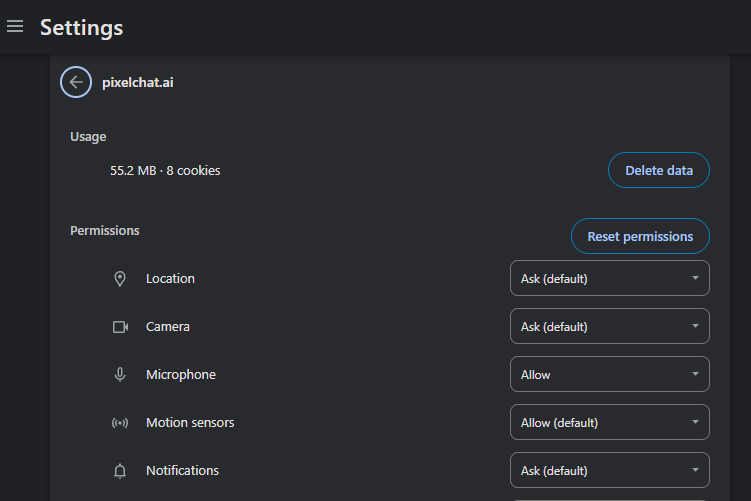
Microphone permissions currently only work reliably on Chrome. You may not be able to activate the mic in other browsers.
Was this article helpful?
That’s Great!
Thank you for your feedback
Sorry! We couldn't be helpful
Thank you for your feedback
Feedback sent
We appreciate your effort and will try to fix the article