The Oracle
Chatting & How the AI Works 14 articles in this folder
Chatting & How the AI Works 14 articles in this folder
Changing the AI model
- Open a chat with any character
- Open the three dots menu at the top right
- Select Generation Settings → Inference Model
- Select Change Model and pick from the models available on your tier
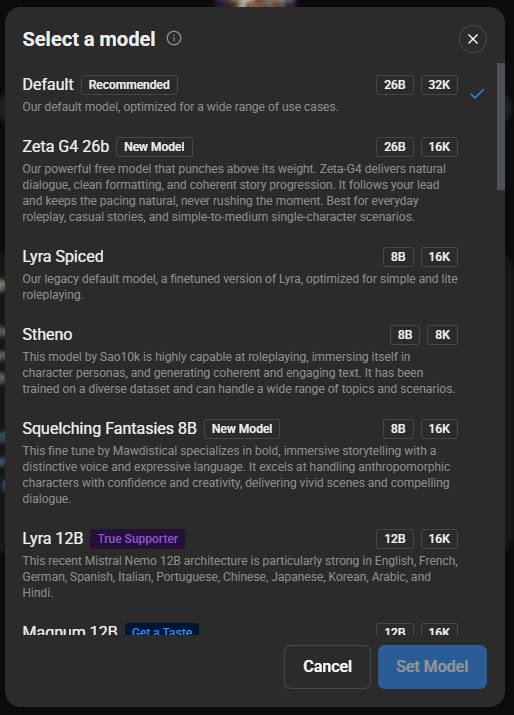
Models available on PixelChat:
| Model | Size / context | Available on |
|---|---|---|
| PixelChat Default | 8B, 16K | All users |
| Zeta G4 26b | 26B, 16K | All users |
| Lyra Spiced | 8B, 16K | All users |
| Stheno | 8B, 8K | All users |
| Squelching Fantasies | 8B, 16K | All users |
| SpicedQ3 A3B | 30B, 16k | All users |
| Magnum 12B | 12B, 16K | Get A Taste and above |
| Lyra 12B V4 | 12B, 16K | True Supporter and above |
| Magnum Diamond | 24B, 16K | True Supporter and above |
| Shimizu 24B | 24B, 16K | True Supporter and above |
| Qwen3 235B | 235B, 16K | True Supporter and above |
| Qwen3 235B Wildcard | 235B, 16K | True Supporter and above |
| PixelXL | 132B, 16K | I'm All In |
| Skyli Pro | PRO, 16K | I'm All In |
| Qwen Plus | PRO, 16K | I'm All In |
| Glam 4.6 | 355B, 32K | I'm All In |
| Minimax | 456B, 16K | I'm All In |
| DeepSeek V3 | 671B, 32K | I'm All In |
| DeepSeek V3 Wild Card | 671B, 32K | I'm All In |
| Glam 5.1 | 744b, 32K | I'm All In |
| Kimi K2 | 1024B, 16K | I'm All In |
| Deepseek V4 Pro | 1600B, 32K | I'm All In |
Each model has a short description of what it's best at. It's worth experimenting — models differ a lot in writing style, how well they follow instructions, and how prone they are to repetition.
Model availability depends on your tier. More detail: AI Models
Was this article helpful?
That’s Great!
Thank you for your feedback
Sorry! We couldn't be helpful
Thank you for your feedback
Feedback sent
We appreciate your effort and will try to fix the article